7 Common Google AI Studio Deployment Issues (And How to Fix Every Single One)

By Jason | Founder of FlyPloy
Google AI Studio has made building AI-powered applications incredibly fast. With Gemini, you can go from idea to working prototype in minutes. But when it's time to actually deploy your creation — things fall apart fast.
We spent a week combing through Reddit threads, GitHub issues, and developer forums to find the most common deployment headaches. Here are the top 7 issues developers face — and how to fix each one.
Issue #1: The Dreaded "Your Deployment Failed" — With No Explanation
What happens: You hit the deploy button in Google AI Studio's built-in Cloud Run integration and get a vague error: "Your deployment failed." Clicking the troubleshooting link leads to generic Google Cloud documentation that doesn't address your specific problem.
Why it happens: AI Studio's one-click deploy uses Google Cloud Run under the hood, which requires:
- A properly configured Google Cloud project
- Billing enabled (even for free tier)
- Correct IAM permissions
- The Cloud Build API and Cloud Run API enabled
Most beginners miss one or more of these steps, and the error messages don't tell you which one.
Reddit says:
"I've been getting 'Your deployment failed' for 3 days straight. The troubleshooting link is useless — it just points to general Cloud Run docs." — r/GoogleGeminiAI
"Finally figured out I needed to enable the Cloud Build API separately. Why doesn't the error just say that?" — r/webdev
The fix:
- Go to Google Cloud Console
- Ensure billing is enabled for your project
- Enable both Cloud Build API and Cloud Run API
- Check IAM permissions — your account needs
Cloud Run AdminandCloud Build Editorroles
Or skip it entirely: FlyPloy doesn't require any cloud console configuration. Upload your ZIP → click Deploy → live in seconds. No billing setup, no API enabling, no IAM headaches.
Issue #2: Blank Screen After Deployment (The "White Screen of Death")
What happens: Your app works perfectly in AI Studio's preview, but after deploying to Netlify, Vercel, or other hosting platforms, you get a completely blank white page.
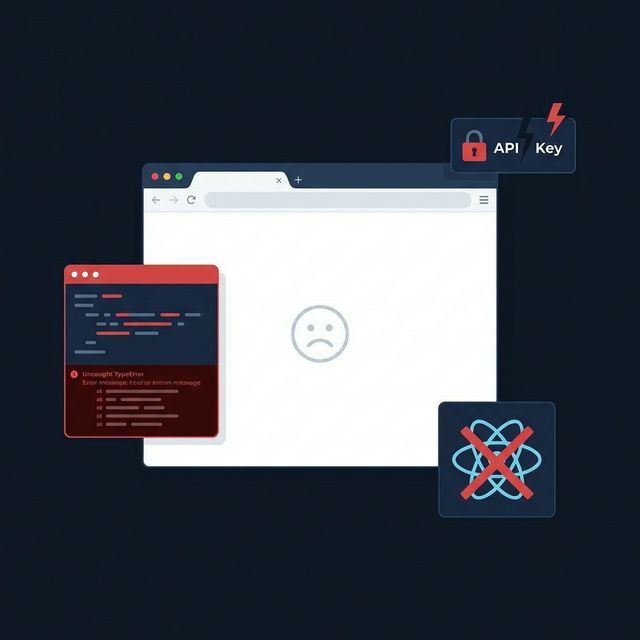
Why it happens: This is usually caused by one of three things:
- Missing API key in production — The app runs fine in AI Studio because the key is injected automatically, but your deployed version has no access to it
- React version conflicts — AI Studio sometimes generates code referencing React 19, but the bundled dependencies expect React 18, causing a silent crash
- Wrong file extension — Some users download the project and the file gets saved as
index.html.txtinstead ofindex.html
Reddit says:
"Deployed my Gemini chatbot to Netlify. Blank screen. Opened DevTools — 'Failed to fetch' error on every API call. Turns out the API key wasn't being passed to the deployed version." — r/reactjs
"White screen on deployment. Console shows two different versions of React loaded. AI Studio generated code with React 19 imports but the CDN links are React 18." — r/webdev
The fix:
- Check the browser console (
F12→ Console tab) for specific errors - Verify your API key is properly configured as an environment variable
- Ensure file extensions are correct (
.html, not.html.txt) - If React conflicts, pin both
reactandreact-domto the same version in your HTML file
The FlyPloy way: FlyPloy auto-detects Gemini API usage and injects the key server-side through a secure proxy. No environment variables to configure. No exposed keys in your frontend code. Your app just works.
Issue #3: Exposed API Keys in Frontend Code
What happens: You deploy your AI Studio project and it works! But then you check the browser DevTools and realize your Gemini API key is visible in plain text in the network requests — or worse, hardcoded in your JavaScript source.

Why it happens: Google AI Studio generates client-side code that calls the Gemini API directly. When you deploy it as-is, the API key must be included in the frontend code. Anyone can:
- Open DevTools → Network tab
- Find the API call to
generativelanguage.googleapis.com - Copy your API key
- Use it for their own purposes (and you pay for it)
Reddit says:
"Just realized my Gemini API key has been exposed in my deployed app for 2 weeks. Someone racked up $47 in charges on my account." — r/GoogleCloud
"Is there any way to use the Gemini API without exposing the key? Every tutorial just puts it in the JavaScript file." — r/learnprogramming
The fix (traditional):
- Build a backend proxy server (Node.js, Python, etc.)
- Store the API key as a server-side environment variable
- Have your frontend call your proxy instead of the Gemini API directly
- The proxy forwards requests to Gemini with the key attached
This effectively turns a 20-minute AI Studio project into a multi-day full-stack project.
The FlyPloy way: FlyPloy's built-in AI API proxy handles this automatically. When you enable Gemini on your project, all API calls are routed through FlyPloy's secure backend. Your API key never touches the browser. Zero backend code required.
Issue #4: Google Cloud Run Container Startup Failure
What happens: You try to deploy via Google Cloud Run and get the error:
The user-provided container failed to start and listen on the port defined
by the PORT=8080 environment variable within the allocated timeout.
Why it happens: Cloud Run expects your app to:
- Listen on the port specified by the
PORTenvironment variable (usually 8080) - Start within a timeout window (default: 300 seconds)
- Respond to HTTP health checks
AI Studio applications are typically static HTML/CSS/JS — they don't have a server listening on a port. Cloud Run is designed for server-side applications, not static files.
Reddit says:
"Spent 4 hours trying to deploy my AI Studio project to Cloud Run. Keeps failing with PORT timeout error. The app is just HTML and JavaScript — it doesn't even have a server!" — r/googlecloud
The fix:
- Wrap your static files in a simple HTTP server (e.g., Nginx or Node.js
serve) - Create a
Dockerfilethat copies your files and starts the server - Ensure the server listens on
process.env.PORTor8080
Example Dockerfile:
FROM nginx:alpine
COPY . /usr/share/nginx/html
EXPOSE 8080
CMD ["nginx", "-g", "daemon off;"]
The FlyPloy way: FlyPloy natively handles static HTML/CSS/JS projects. No Dockerfile, no server configuration, no port mapping. Upload your files and they're served globally with automatic HTTPS.
Issue #5: Build Command Failed on Netlify / Vercel
What happens: You push your AI Studio project to Netlify or Vercel and the build step fails with errors about missing dependencies, wrong Node.js version, or unrecognized build commands.
Why it happens: Netlify and Vercel expect a specific project structure:
- A
package.jsonwith build scripts - A
buildordistoutput directory - Proper dependency declarations
AI Studio projects are typically plain HTML/CSS/JS — no package.json, no build step. These platforms don't know what to do with them.
Reddit says:
"Netlify keeps failing with 'Build command failed.' My AI Studio project is literally just an HTML file and a JavaScript file. What am I supposed to put as the build command?" — r/Netlify
"Vercel wants a framework detected. It's just vanilla HTML from AI Studio. Had to create a fake package.json just to deploy." — r/webdev
The fix for Netlify:
- Set Build command to empty (or
#to skip) - Set Publish directory to the folder containing your
index.html - Add a
_redirectsfile if you need SPA routing
The fix for Vercel:
- Set Framework Preset to "Other"
- Leave build command empty
- Set output directory to
.or your project root
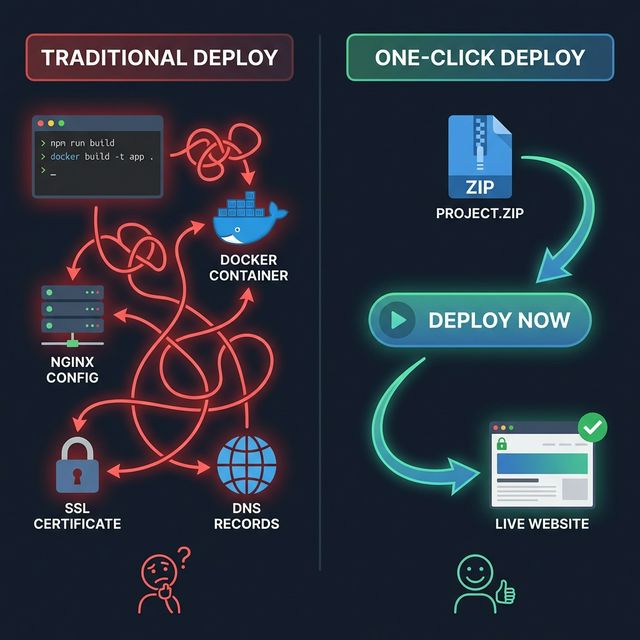
The FlyPloy way: FlyPloy doesn't require Git, build commands, or framework detection. It accepts raw HTML/CSS/JS files directly — which is exactly what AI Studio outputs. Zero configuration deploys.
Issue #6: Rate Limits and API Quota Exceeded
What happens: Your deployed app works initially, but after some usage, users start seeing errors. The Gemini API returns 429 Too Many Requests or RESOURCE_EXHAUSTED errors.
Why it happens: The Gemini API has strict rate limits, especially on the free tier:
| Tier | Requests/Min | Tokens/Min | Requests/Day |
|---|---|---|---|
| Free | 15 | 1,000,000 | 1,500 |
| Tier 1 (Paid) | 1,000 | 4,000,000 | 10,000+ |
If your app goes viral or gets more traffic than expected, you'll hit these limits quickly.
Reddit says:
"My AI app stopped working after I shared it on Twitter. Turns out I hit the 1,500 requests/day limit on the free tier in 2 hours." — r/GoogleGeminiAI
"Getting 429 errors constantly. Even on the paid tier, Gemini 2.5 Pro only allows 250 requests per day?!" — r/artificial
The fix:
- Implement client-side rate limiting and caching
- Add a queue system for API requests
- Display a user-friendly message when limits are hit
- Upgrade to a higher tier if needed
- Consider using multiple API keys for load distribution
The FlyPloy way: FlyPloy's AI API proxy includes built-in rate limiting, usage analytics, and token tracking. You can monitor your usage from the dashboard and set alerts before you hit quota limits — no backend code needed.
Issue #7: "It Works in Preview But Not After Export"
What happens: Everything works perfectly inside Google AI Studio's preview pane, but the moment you download the code and open it locally or deploy it, features stop working.
Why it happens: AI Studio's preview environment provides some "magic" that disappears when you export:
- API key injection — The preview auto-injects your API key; exported code doesn't have it
- CORS handling — The preview bypasses CORS restrictions; your deployed version doesn't
- Asset paths — Some generated code uses relative paths that only work in AI Studio's file structure
- Hidden dependencies — The preview environment may include polyfills or libraries not bundled in the export
Reddit says:
"Why does my app work perfectly in AI Studio but the downloaded version just shows errors? Same exact code!" — r/GoogleGeminiAI
"The exported code references fonts and icons that aren't included in the download. Had to manually add Google Fonts CDN links." — r/webdev
The fix:
- Check the browser console for errors immediately after opening the exported code
- Add missing CDN links for fonts, icons, and libraries
- Configure API keys properly (see Issue #3)
- Test locally with a proper HTTP server (not just opening the HTML file directly)
The FlyPloy way: Upload the AI Studio export directly to FlyPloy — the platform handles asset serving, HTTPS, CORS headers, and API key injection automatically. What works in preview will work in production.
The Bigger Problem: AI Makes Building Easy, Deployment is Still Hard
Here's the pattern: AI has democratized building apps, but deployment is still stuck in 2015.
Google AI Studio lets anyone — designers, product managers, students, indie hackers — build functional AI applications in minutes. But the moment they try to share their creation with the world, they hit a wall of DevOps complexity that was designed for full-time infrastructure engineers.
This gap is only growing wider. As AI coding tools get better, more people will build more apps — and more of those apps will die on local machines because deployment is too painful.
That's exactly the problem FlyPloy was built to solve.
TL;DR: Quick Reference
| Issue | Root Cause | Quick Fix | FlyPloy Fix |
|---|---|---|---|
| Deployment failed (no details) | Missing Cloud APIs/billing | Enable APIs in Cloud Console | No cloud setup needed |
| Blank screen | Missing API key / React conflict | Check console, fix env vars | Auto API injection |
| Exposed API keys | Client-side API calls | Build a backend proxy | Built-in secure proxy |
| Container startup failure | Static files on Cloud Run | Add Dockerfile + server | Native static hosting |
| Build command failed | No package.json for platforms | Configure build settings | Zero-config deploy |
| Rate limits exceeded | API quota limits | Implement caching/queuing | Usage analytics + alerts |
| Works in preview only | Missing injected dependencies | Add CDN links + API keys | Handles automatically |
Get Your AI Studio Project Online in 15 Seconds
Stop fighting deployment issues. Here's all it takes:
- Sign up free — no credit card required
- Upload your ZIP from Google AI Studio
- Click Deploy — your app is live with HTTPS
Your first project includes a free 7-day trial. For Gemini API auto-pairing and custom domains, check out the Starter plan.
Have a deployment horror story? We'd love to hear it. Reach out on our contact page or browse the project gallery to see what others have built and deployed with FlyPloy.
About the Author
Jason is the founder of FlyPloy, an AI-native deployment platform. He built FlyPloy after watching too many great AI projects die on local machines due to deployment complexity. When he's not fixing deployment issues, he's causing them in Google AI Studio.